Troubleshooting
"Show Checklist-Unexpected token" error.
Please follow the steps below to reauthorise your account.
Before you begin, we recommend taking a screenshot of your current Show Checklist Settings, as these will revert to default during the process. To do this:
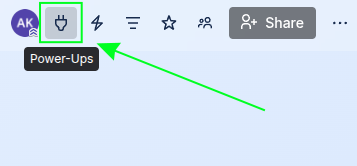
- Go to Power-Ups,
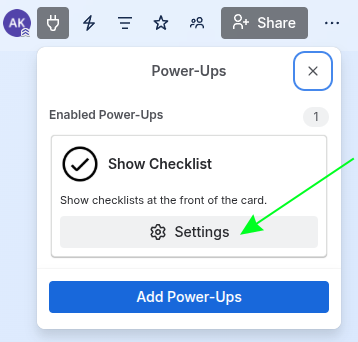
- Click on Show Checklist Settings,
- Select Edit Power-Up Settings,
- Take a screenshot of your current configuration.
Once you’ve done that, please follow the reauthorisation steps outlined below (with screenshots provided for guidance).
-
Open the list of Power-Ups and click Show Checklist Settings
-
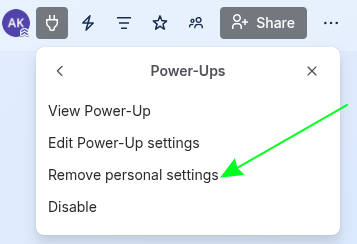
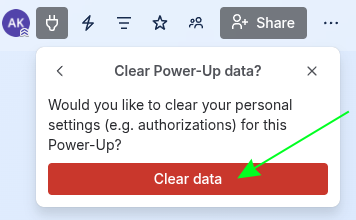
Select 'Remove personal settings' and confirm by pressing 'Clear data'
-
Refresh the page
-
Open the list of Power-Ups and click Show Checklist Settings
-
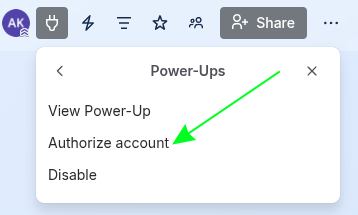
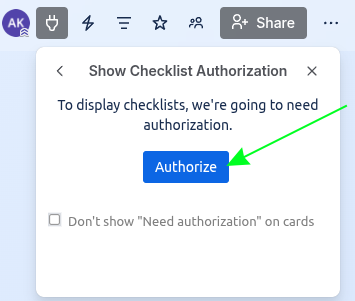
Select 'Authorize account' and confirm by pressing 'Authorize'
-
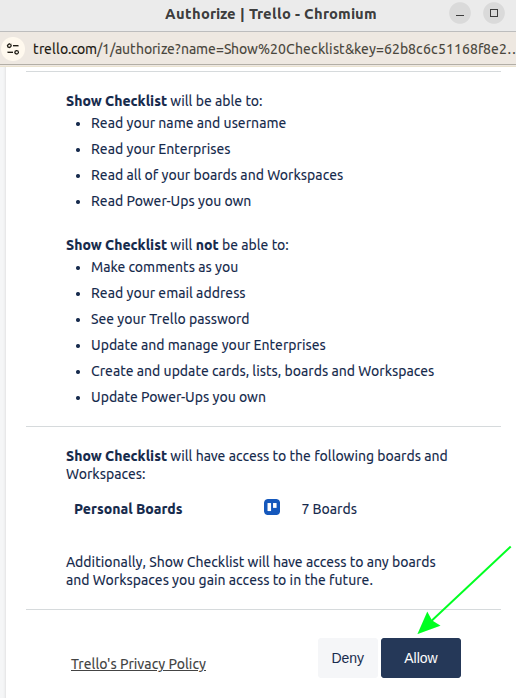
Scroll to the bottom and click 'Allow'
-
Refresh the page - checklist should be visible.